
YouTube Language Level
CEFR level checker for YouTube videos
Analyze the CEFR level (A1–C2) of any YouTube video using AI — cloud (Gemini API) or fully local, no internet required (Gemini Nano, Ollama).
Choose between three AI engines: Gemini API (cloud, free tier), Gemini Nano (built into Chrome), or Ollama (local server). Works for any language.
Available on Chrome Web Store
☕ Support on Ko-fi
This extension relies on free external AI services to analyze language level. These services may become paid or unavailable in the future — if you'd like to help keep the extension running, consider supporting it. Thank you! 💙
🌐 Language
Screenshots
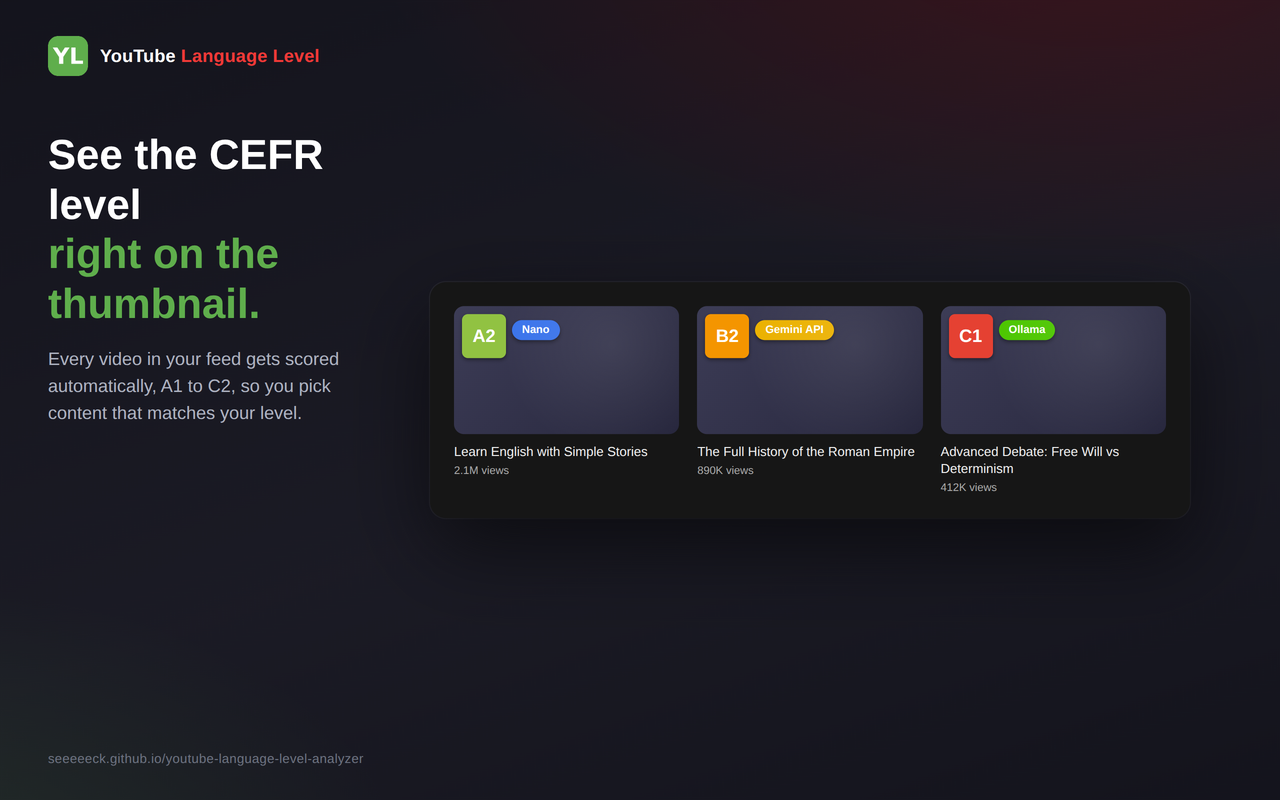
CEFR level badges shown on YouTube video thumbnails
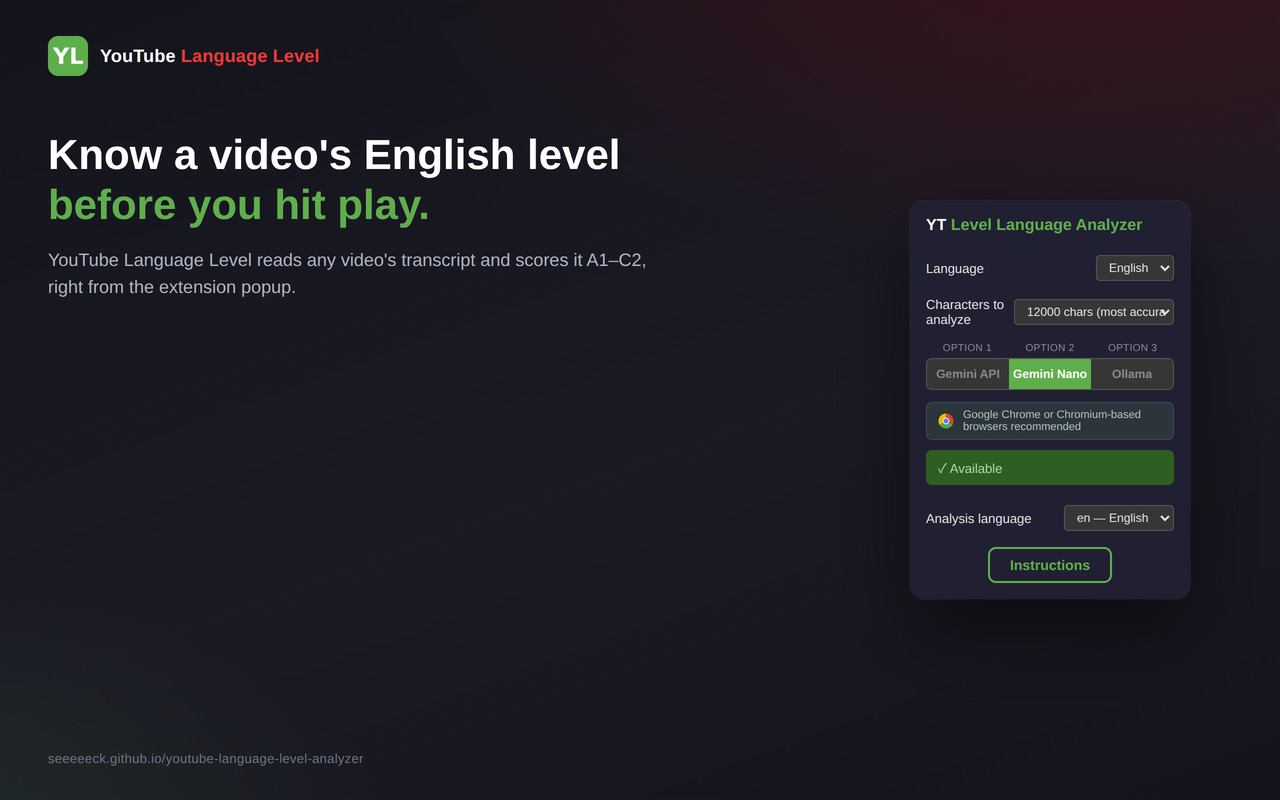
Extension popup — Gemini Nano tab
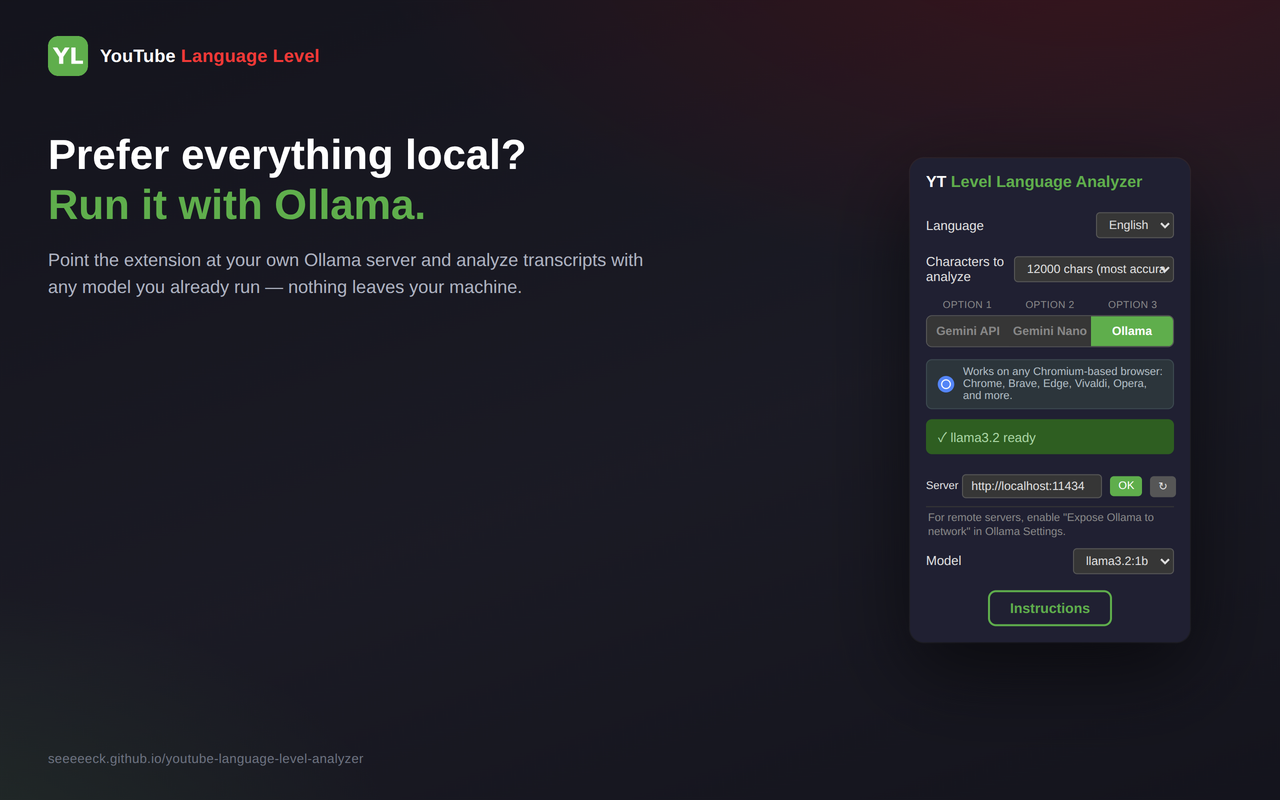
Extension popup — Ollama tab
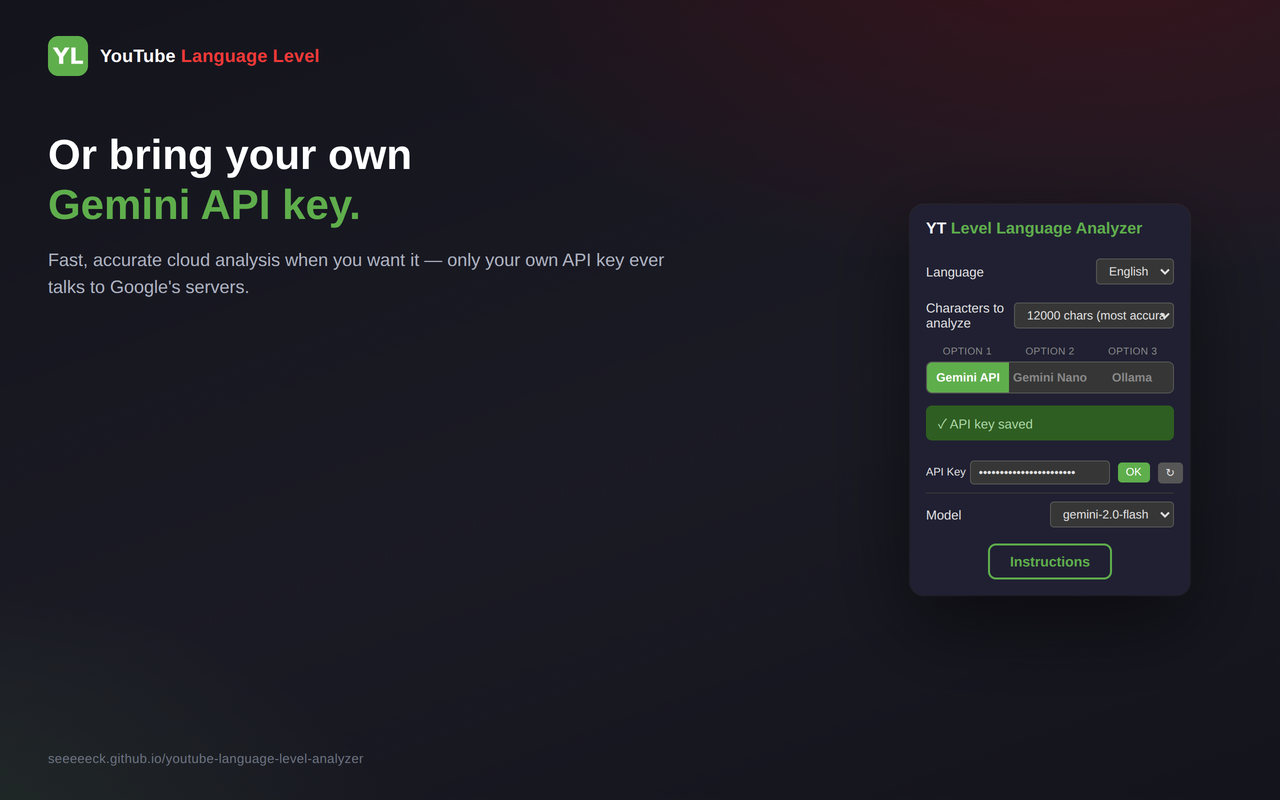
Extension popup — Gemini API tab
Features
🏷️ CEFR Badges
Colored circles (A1–C2) on YouTube video thumbnails
🤖 Three AI Engines
Use Gemini API (cloud), Gemini Nano (built-in Chrome AI), or Ollama (local models)
🌐 Multi-language
Analyzes videos in English, Spanish, French, German, Japanese, and more
🔒 100% Private
Everything runs locally — no data leaves your machine
🎸 Custom Server
Point to any Ollama instance on your network
⚡ Fast Cache
Results are cached locally to avoid re-analysis
📋 Adjustable Sample Size
Choose how many characters of the transcript to analyze (3000/6000/12000) to trade off speed vs. accuracy
Requirements
- Chrome 128+, Brave, or any Chromium-based browser
- Gemini API: Free API key from Google AI Studio
- Gemini Nano: Chrome 128+ with Prompt API enabled
- Ollama: Ollama installed and running (ollama.com) with at least one model downloaded
Option 1: Gemini API
Gemini API uses Google's cloud AI models with a free API key from Google AI Studio. Works on any Chromium-based browser and doesn't require downloading any model.
1. Get your API key
- Go to Google AI Studio: aistudio.google.com/apikey
- Sign in with your Google account
- Click "Create API key"
- Copy the generated API key, paste it into the extension's API key field, then click OK
2. Configure in the extension
- Select the API Gemini tab
- Paste your API key into the field
- Click OK to save and test the key
- Select a model from the dropdown
3. Reload YouTube
Option 2: Gemini Nano
Gemini Nano is Chrome's built-in AI model. You need to download the AI model first.
1. Activate Nano AI
- Enter this in the browser address bar:
chrome://flags/#prompt-api-for-gemini-nano - Set the flag to "Enabled Multilanguage"
- Click "Relaunch" or restart the browser
chrome://flags/#optimization-guide-on-device-model and select "Enabled BypassPerfRequirement"2. Check the model status
Open the YouTube Language Level popup and select the Gemini Nano tab:
| Status | Meaning |
|---|---|
| Available | Ready to use |
| Downloading | Model is being downloaded |
| Downloadable | Needs to download first |
| Unavailable | Not supported in your browser or model not downloaded |
3. Choose the analysis language
Select the language of the video you want to analyze:
| Code | Language |
|---|---|
| en | English |
| es | Spanish |
| ja | Japanese |
| de | German |
| fr | French |
4. Reload YouTube
Option 3: Ollama
1. Install Ollama
Linux / macOS:
curl -fsSL https://ollama.com/install.sh | shWindows:
Download the installer from ollama.com/download and run it.
2. Download a model
Run this in a terminal (Linux/macOS) or PowerShell/CMD (Windows):
ollama pull gemma3:1bgemma3:1b) is recommended for faster responses.3. Configure CORS
The extension needs permission to talk to Ollama from YouTube.
Linux — Systemd (permanent)
sudo mkdir -p /etc/systemd/system/ollama.service.d
echo '[Service]
Environment=OLLAMA_ORIGINS=*' | sudo tee /etc/systemd/system/ollama.service.d/override.conf
sudo systemctl daemon-reload
sudo systemctl restart ollama
Linux — Temporary
sudo systemctl stop ollama
OLLAMA_ORIGINS=* ollama serve
Windows — Permanent
- Open System Properties → Environment Variables
- Add a new System variable:
OLLAMA_ORIGINS=* - Click OK and restart Ollama
Windows — Temporary (PowerShell)
$env:OLLAMA_ORIGINS="*"
ollama serve4. Configure in the extension
- Click the extension icon
- Select the Ollama tab
- Set your server URL (default:
http://localhost:11434) - Click OK to test the connection
- Select a model from the dropdown
5. Reload YouTube
Using the Extension
- Go to https://www.youtube.com
- Videos with transcripts show a green spinner while analyzing
- A colored circle appears with the level: A1, A2, B1, B2, C1, or C2
- Hover over the badge to see which engine and model was used
- Click the extension icon to open the popup and switch between engines
Custom Ollama Server
By default the extension connects to http://localhost:11434. To change it:
- Open the extension popup
- Select the Ollama tab
- Enter your server URL (e.g.
http://localhost:11434) - Click OK — the extension will test the connection and load available models